 PixTexta
How to Edit Text in an Image
Upload an image
Open a static JPG, PNG, or WebP up to 10 MiB and 12 MP. The editor highlights the text it detects in your image.
Edit the text
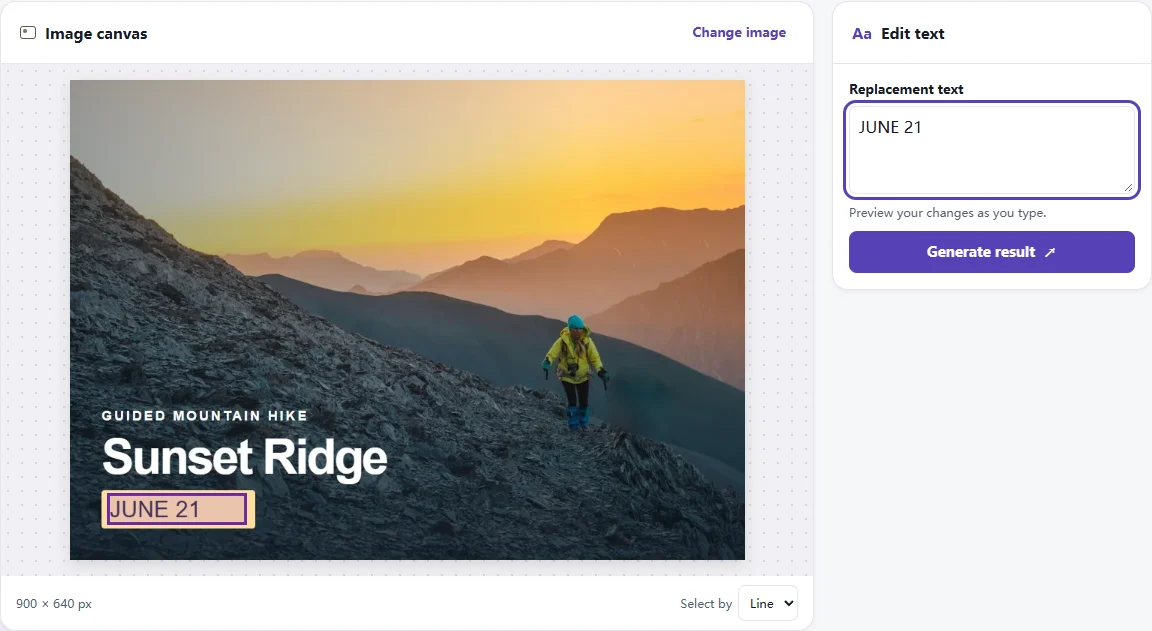
Select a highlighted word or line and type the replacement. Preview your change, then choose Generate result.
Download your image
Adjust the font, size, color, or position if needed, then export a PNG at the size shown on the canvas.
What you can update in a finished image
Product listing images
Suppose a photo of your handmade ceramic mug has “Ocean Blue” in a plain caption below the object. If that color is now listed as “Harbor Blue,” select the caption and update the name. Keep the mug, crop, and surrounding styling from the same image. A label on the image margin is easier to edit than text printed across the curved surface of the mug.
Posters and event graphics
A garden club moves its weekend workshop from June 14 to June 21. If all you have is the shared poster, select the date line and keep the title and illustration as they are. Check that the new date sits on the same baseline and that the space between the date and the venue still feels even.
Social media screenshots
A studio shares a tutorial for its own design tool and later renames a menu item from “Layouts” to “Templates.” Updating that line in the teaching image can keep the example current. Use the screenshot editor guide for tips on small interface labels, including how to keep the border and icons around a caption intact.
Memes and reaction images
Give a pet photo a new caption for the group chat. For example, change “Waiting for the weekend” to “Waiting for the snacks” in the caption band above the photo. Try a shorter phrase if the new line starts to crowd the edge. A solid caption band is easier to clean than white letters over the cat's whiskers.
Editing existing text versus adding a new label
You can edit text on image files by adding a label or replacing lettering that's already there. If you've used a text image editor to place a new headline in a blank area, the original pixels underneath don't need to change. Existing letters have already become pixels, so laying another label on top can leave old lettering visible. PixTexta starts with a detected region, clears the old letter shapes there, and draws the replacement. That workflow is useful when the original layout is already settled.
If you only have an export and need to work around a missing font or a tight layout, start with the smallest region that can fit the whole replacement. For a two-digit date inside a closely spaced line, select the date first. Choose the whole line if the replacement needs room to match the size of the surrounding letters.
You can check the detected boxes and preview a draft before generating. The free guest edit exports a watermarked PNG. A new account starts with three credits for watermark-free edits. A successful regeneration uses another edit. Small adjustments and repeat downloads of the same result happen in the browser. See PixTexta pricing for the current guest allowance and download details.
When to use PixTexta, Canva, or Photoshop
Start with the file you have and decide how much of the design needs to change. Correcting a date in an exported flyer is a small image edit. Preparing a flyer for an entire series of events calls for a design that your team can open and update each week.
| Tool | Best starting point | Example |
|---|---|---|
| PixTexta | You have a finished JPG, PNG, or WebP and want to change an existing word or line from the browser. The editor detects text, repairs the selected area, and exports a PNG. | Fix a date on a shared poster when the editable project is unavailable. Check the match against the original before downloading. |
| Canva | You are working in a Canva design and want to revise editable text, reorganize the design, or make a new version from a template. Grab Text can also turn text inside an image into an editable element on eligible plans and design types. | Update a weekly event card and reuse the project for future dates. Review the original wording and alignment if you use Grab Text. |
| Adobe Photoshop | You have a working type layer or need to choose how to repair a difficult background. Content-Aware Fill lets you adjust the area Photoshop samples to replace selected pixels. | Retouch lettering on a textured product photo. Check the repair close up and keep an editable type layer for any later change. |
Product documentation for the workflows above. Canva Grab Text and Adobe’s guides to type layers and Content-Aware Fill.
Image formats, upload limits, and PNG size
PixTexta accepts single-frame JPG, PNG, and WebP files up to 10 MiB and 12 megapixels (12 MP). File size measures how much space the encoded file occupies. Megapixels measure the number of pixels after decoding, based on width times height. A phone photo can be well under 10 MiB and still exceed 12 MP.
For example, 4000 × 3000 is exactly 12 MP. A 4032 × 3024 photo contains about 12.19 MP. When an otherwise eligible image exceeds the pixel limit, the editor offers to resize a copy before text detection. For a small label on a large canvas, cropping a copy around the relevant area also keeps the letters readable. Leave some margin around the text so you can judge the repair against its surroundings.
The downloaded PNG uses the dimensions displayed in the editor. If you resize or crop the image before editing, check those dimensions before you share the result or place it back into a layout. For screenshots, start with the capture your device saved. Images forwarded through messaging and social apps may have lost the detail that helps PixTexta distinguish small characters.
Know when an image is hard to edit
Words on a plain color or a gentle gradient are usually the easiest targets. Letters across hair, fabric, a patterned label, or a detailed illustration hide information the editor has to estimate. Look at the cleared area at normal sharing size, then zoom in if there is a visible patch. A small correction on a smooth part of the image often works better than replacing a full headline across a busy photo.
Very short words, such as “OK” or “Go,” can be hard to recognize, especially at a small size. They also give the font matcher few distinct letter shapes to compare. Heavy compression can blur thin strokes, close the spaces inside letters, or add halos around type. If a label has no selection box or is misread, try the clearest available original or capture that section again at a readable scale.
Automatic font matching is designed for Latin type. Its suggestions are most useful on clear Latin lettering with several distinct characters. For other scripts, rely on a visual comparison and be prepared to use a tool with the required font. With a custom or decorative Latin font, compare the stroke weight, letter height, and spaces against the remaining text. A longer sentence may require a smaller type size or a line break.
Before exporting, use the original view to compare the repaired area and the new text. Read the full line once at the size your audience will see it. Then look closely at the edges of the letters and at any nearby artwork. If the wording fits but feels low or too dark, adjust the position or color and check the whole image again.